Before bothering to configure your WCDMA (UMTS) modem with Linux you should consider plugging it into a mobile phone which has an Internet sharing feature. Most modern mobile phones have this feature and the process will take just about 30-60 seconds to setup and surf the web.
I will have screen shots later tonight.
Otherwise follow the steps below which may already be outdates 🙂 :
This Document explains how to configure the Bandluxe GSM Modem on Ubuntu 8.04.
Tech Specs:
The Bandluxe GSM modem www.bandrich.com; comes with a USB based express card slot.
We had build in Express cards so we ignored the one that came with the modem.
Toshiba p100 PSPA6: www.toshiba.com
Dell 1525: www.dell.com
NOTE: If you have problems and need help, feel free to to leave me a message.
————————————————————————————–
Update may 24
Please run this line first in the command line:
usr@home:$echo “at+cgdcont=1,\”IP\”,\”Internet\”” > /dev/ttyUSB0
where “Internet” = your Access Provider Name (APN)
————————————————————————————–
Open a Terminal and type pppconfig at the prompt.
usr@home:$ pppconfig
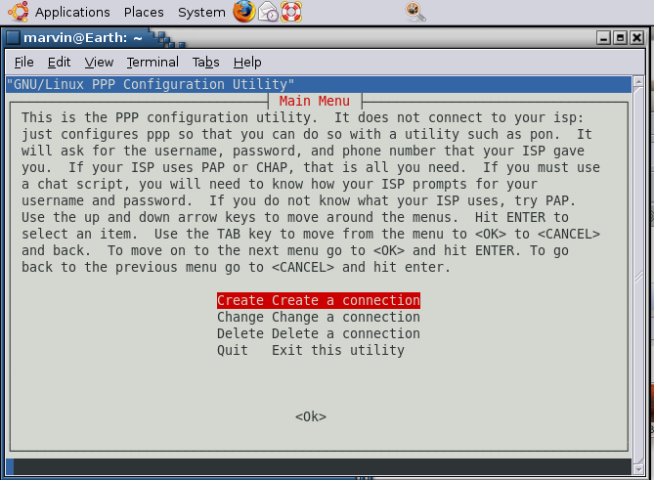
Create a new connection
———————–
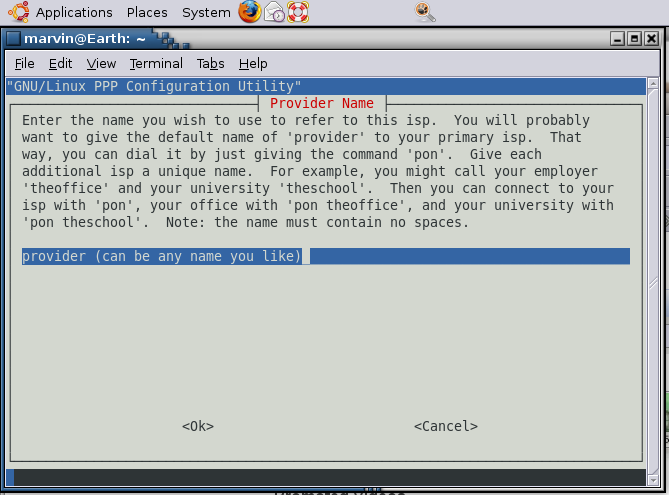
Enter a name for your service provider, this can be anything XYZ if you like, you will use it later to start your connection.
———————–

<!–[if gte vml 1]> <![endif]–><!–[if !vml]–><!–[endif]–>
<!–[if gte vml 1]> <![endif]–><!–[if !vml]–><!–[endif]–>
<!–[if gte vml 1]> <![endif]–><!–[if !vml]–><!–[endif]–>
Select Static or Dynamic DNS. For AlJawal this will be Dynamic.
———————–

Select which applies to you, for Aljawal PAP works just find.
———————–
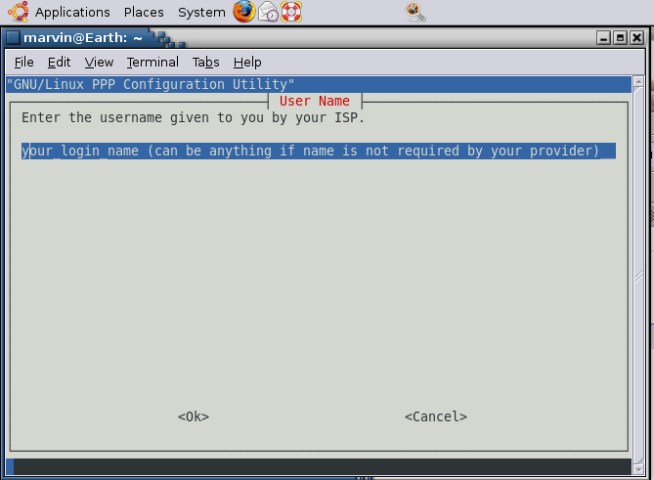
Enter a user name if required or anything (XYZ) if not.
AlJawalnet in Saudi Arabia does not require a user name or password so any name will do, so I just wrote ‘a’ for user name and password.
———————–

<!–[if gte vml 1]> <![endif]–><!–[if !vml]–><!–[endif]–>
Leave as is and select ok
———————–
<!–[if gte vml 1]> <![endif]–><!–[if !vml]–><!–[endif]–>

Enter Number: *99# (this number seems to be an international standard)
———————–
<!–[if gte vml 1]> <![endif]–><!–[if !vml]–><!–[endif]–>
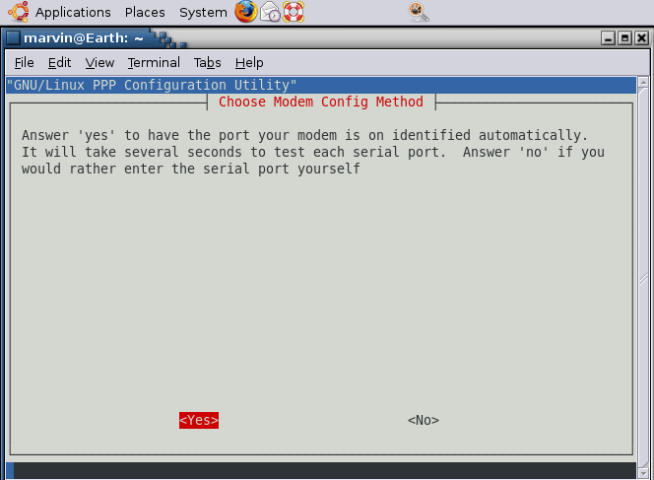
<!–[if gte vml 1]> <![endif]–><!–[if !vml]–><!–[endif]–>
Try running this prop, in my system it didn’t find it so I went on to the next screen.
———————–
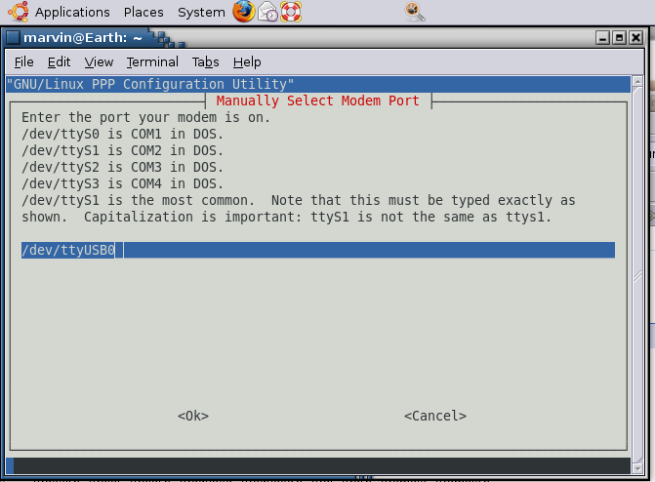
<!–[if gte vml 1]> <![endif]–>
on the tested systems (see above) the string is: /dev/Modem/ttyUSB0
———————–

<!–[if gte vml 1]> <![endif]–><!–[if !vml]–><!–[endif]–>
Confirm the info and select Finished Write to files and return to main menu and then exit the utility.
———————–
At the command prompt type: ‘pon’ /poff and the name of your connection (the way you named it) in my case its Jawal.
Example:
usr@home: $pon Jawal (the name you gave in the config.)
to disconnect use:
usr@home: $poff Jawal (the name you gave in the config.)
To monitor the kernel processes
usr@home:$ tail –f /var/log/messages
 Marvin ReBooTed